Describe when someone would need this information. For example "when connecting to wi-fi for the first time".
Add the steps involved:
If you cannot access the site using the temporary IP address, you can modify your Mac OS hosts file instead.
Step 1
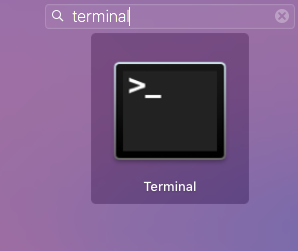
Launch the Terminal app. You can find the Terminal app under the Utilities folder in Applications. You can also find it using the Spotlight function.
Step 2
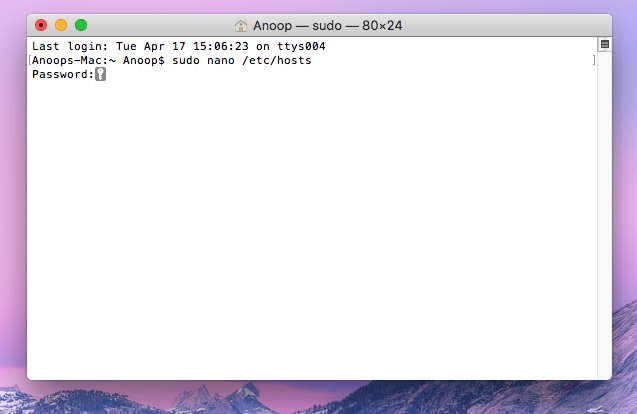
Once the Terminal app is open, type the following command and press enter. You'll be prompted for your Administrator password:
sudo nano /etc/hosts
Step 3
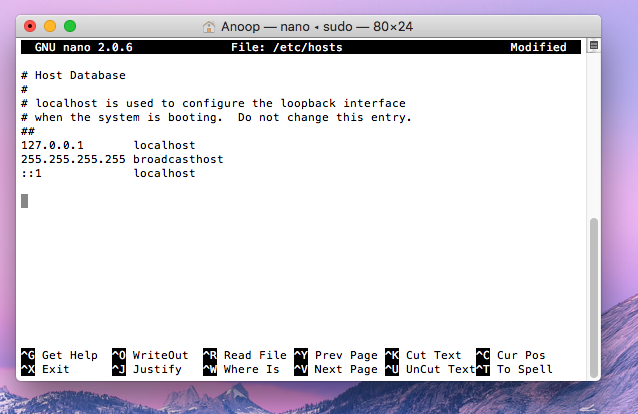
The Nano text editor will appear with the content of the /etc/hosts file within it. Use your arrow keys to place your cursor at the end of the file. You can now type the IP address of where you want the domain to resolve to, followed by the tab key, and finally, enter the domain name.
Step 4
Once you have finished editing, hold down the control and o keys to save the file. Now you can exit Nano by pressing control and x. This will bring you back to the terminal command prompt.
Step 5
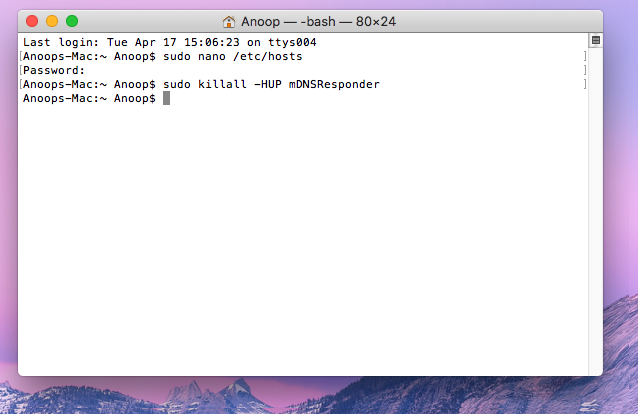
Finally, we need to flush the DNS cache using the following command and press enter
sudo killall -HUP mDNSResponder
IMPORTANT: Don’t forget you have edited the hosts file. At some point, you’ll want to come back and undo the changes made here.
| You may also want to use visual panels to communicate related information, tips or things users need to be aware of. |
Related articles appear here based on the labels you select. Click to edit the macro and add or change labels.
|